* You are viewing the archive for the ‘Unity3D’ Category

Technology Research 2013

Time for some research! Peter Timmerman, Master degree student in Applied Engineering – Computer Science at University College Ghent, joined us a few weeks ago for his internship and thesis on a range of technologies applicable to game prototyping and game development.

Here are some of the things Peter will have a closer look at:

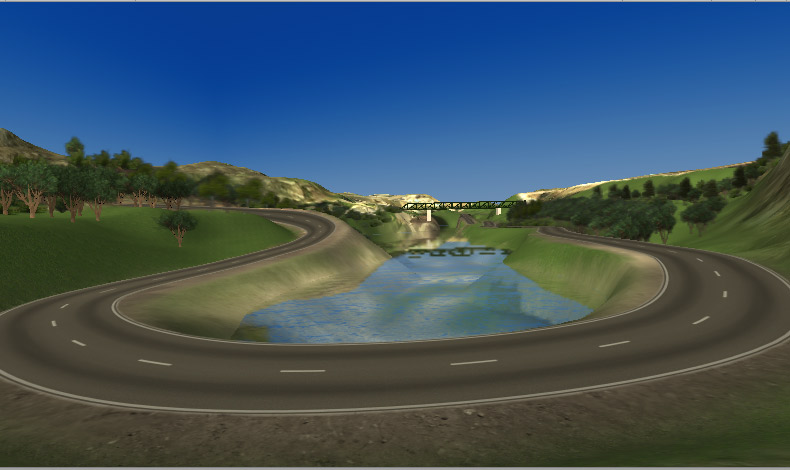
  • Fast development of race games: We’re anxious to find out more on quickly generating race tracks on the fly!
  • Using sound files as input: For instance to be used in a basic lip sync algorithm, or perhaps to generate a level based on a sound file?
  • Real-time multiplayer: Peter will have a look at SmartFoxS and Exit Games’ Photon Server.
  • Adobe Flash animations in Unity3D: We’ve already tested Iggy (see earlier article), so uniSWF and/or Autodesk Scaleform will be next. At least… if we can get our hands on trial versions.
  • Location based gameplay: Using the iPhone’s GPS and compass, we’ll create a small location based game, perhaps combined with augmented reality.
  • OpenNI: Building upon PreviewLabs’ experience prototyping for the Kinect SDK, Peter will create a playable game prototype using the OpenNI SDK and share it with the community.
  • Smart TVs: The platform of the future? Could be. Eager to learn something about game development on a Samsung Smart TV!
  • Recreating a smartphone’s 3D path: We’ll see how far we get in reconstructing the 3D trajectory of a moving smartphone, solely based on accelerometer and gyroscope data.
  • Gameplay possibilities of Brain-Computer Interfaces (BCI): We’ll use the NeuroSky MindWave to learn more about how measuring your brainwaves could affect gameplay.
  • Dual screen gameplay: Interested by the gameplay possibilities of recent Wii U and Xbox Smartglass products, we’ll see if there’s an easy way to prototype gameplay using two screens in Unity3D.

In the coming weeks we’ll be making a blogpost for each technology we’ve researched, so stay tuned!

Using Iggy for Flash Animation in Unity3D

Recently, we have been looking into technologies that allow integration of animations made in Flash in Unity3D prototypes and games. This seems to be very useful to create complex 2D animations in Flash, and simply play them in Unity.

There are a several solutions on the market for this, like AutoDesk’s Scaleform, UniSWF and Rad Game Tools’ Iggy. Since I wasn’t able to obtain a trial version of both Scaleform (which wasn’t yet released for Unity) and UniSWF (whose support didn’t answer to our email), I have examined Iggy in more detail.

We were quite surprised to see that Iggy gives you the freedom to program parts of your game either in Unity, or in Flash itself, using ActionScript 3. For instance, you could write a lot of actionscript code for the animation and simply dispatch input events like a key press through Iggy to the actionscript. Alternatively, you could limit the code in Flash as much as possible, and control everything from within Unity.

This sounds quite powerful, but unfortunately the process required to integrate it in a project can’t really be called user friendly. It seems that this still requires a lot of code that could as well have been hidden from the programmer’s eyes. Also on the stability side of the product, there’s still some work for Rad Game Tools – Unity crashed now and then while playing Flash animations.

Iggy is still relatively new and still has some issues, but it’s certainly something to look out for. I may have a second look at it again in a few months from now, and also evaluate Scaleform and UniSWF if possible.

Unity 4 Announced

Unity Technologies announced the next big release of their game engine earlier this week: Unity 4. This was quite a surprise to me, since they’ve only launched their previous big release, Unity 3.5, in March at the Game Developers Conference.

The main features that they’re adding in this release include an advanced character animation tool, and improved graphics (advanced shadows for mobile devices, and DirectX 11 rendering for PC games), and support for the Linux operating system.

Most of the announced features are particularly useful for the development of higher quality full games, but for rapid prototyping we have to look at the smaller features.

Among the announced features, these are the two features of which we believe that they could interesting for rapid prototyping:

  • Major optimisations in UnityGUI performance and memory usage: This would also allow us to prototype more complex 2D games faster on the mobile platform, hopefully entirely removing the need to use sprite manager systems for prototyping purposes, as described in this earlier blog post.
  • Dynamic fonts on all platforms with HTML-like markup: This could allow us to prototype UIs faster.
  • The profiler feature will also work on mobile: This will make it faster to find performance bottlenecks – even though this would only be available for certain Android devices, perhaps they’ll extend it to iOS in the future. And profiling on Android could help detecting performance issues that are present on iOS as well.

The release date hasn’t been announced yet, and I suspect that there may be several smaller workflow improvements that make it more convenient to work with Unity.

Unity Essentials Books Giveaway

Together with Packt Publishing, we’re giving away a couple of books on Unity3D!

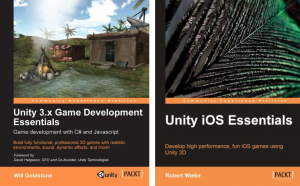
Six of our readers will get either Unity 3.x Game Development Essentials or Unity iOS Essentials.

Unity 3.x Game Development Essentials seems to be aimed at users new to Unity3D and gives quite a complete tour of the game engine – covering beginner’s topics like 3D game development basics and user interfaces, but also more advanced topics as ray-casting and optimization.

One of the main differences when developing for iOS, compared to PC or Mac, is that you have to be more careful when it comes to performance. The author of the other book, Unity iOS Essentials, is clearly aware of this, as the readers already get their hands dirty in the the second chapter called iOS Performance Guide.

All you have to do to make a chance to win one of the books is to add a comment to this post, letting us know which one of the two books you’d like to win, and what topics you’d like to read more about in it.

An overview of the topics covered in the books can be found here and here (under the ‘Table of Contents’ tab).

Winners will be selected at random. Winners from the U.S. and Europe can either choose to receive a physical copy of the book or the eBook. Winners from other locales are limited to the eBook only. The contest will close on the 14th of February, and the winners will be contacted by email the day after – so be sure to use your real email address when you comment!

Dartboard AR Prototype Video

A few months ago, Jonas De Breucker was having his internship at PreviewLabs. One of the tasks for his research project was to create an example prototype using Qualcomm AR, a plug-in for Unity3D to allow development of augmented reality games on smartphones.

We’ve recorded a video demonstrating the example prototype developed by Jonas:

In order to help our customers develop this kind of games, it’s important to have a good insight in how the technology works, and to be aware of the resulting technological limitations.

An overview of some of our findings developing this prototype will be given in a future blog post.

2D Game Development in Unity3D: Overview

Continuing our series about 2D development and prototyping in Unity3D, we’re back with an overview of the different methods and their pros and cons.

Unity3D’s GUI class (previous post)

Pros:

  • Very fast to use: only line of code is enough to display an image – no other actions or setup involved.
  • Images can be displayed in a ‘pixel-perfect’ way.
Cons:

  • Bad performance on iOS: not suitable for if more than 30-50 have to be simultaneously visible on screen (each image consumes one draw call).
  • Using the physics engine is not possible without a workaround.
  • Additional code is required to support different screen resolutions.

Sprite manager systems like GUISpriteUI (previous post)

Pros:

  • Fast on iOS: textures can be easily combined into texture Atlases, potentially resulting in only one draw call.
  • Images can be displayed in a ‘pixel-perfect’ way.
  • Most systems allow positioning sprites in the editor.
Cons:

  • Slower to use: more code writing and setup involved.
  • Using the physics engine is not possible without a workaround.
  • Depending on the system used, additional code may be required to support different screen resolutions.

3D objects and orthographic projection (previous post)

Pros:

  • Allows using the Unity3D editor to build your levels.
  • Relatively fast UI on iOS and Android.
  • Easy access to the physics engine.
  • Easy to combine with other Unity3D features (e.g. particle effects, 3D animated characters and animation blending, …).
  • Your game automatically works under different screen resolutions.
Cons:

  • Performance can be optimized on iOS by using texture atlases, but requires additional setup.
  • Using pixel coordinates to define the scale and position of objects is possible, but makes it a lot harder (or impossible) to get decent results from the physics engine.

As you can see, each of them has its own specific advantages and disadvantages. This means there is no ‘best’ method; all depends on the needs of your project.

2D Game Prototyping in Unity3D: Orthographic Projection

After having discussed Unity3D’s GUI class and the GUISpriteUI system as two different methods of creating 2D games in Unity3D, we’re now ready to discuss a third method: combining 3D graphics with orthographic projection.

For this to work, you’ll have to create a scene in 3D, and then set up the camera to use orthographic projection instead of perspective projection.

If all you want is to use 2D textures, you can simply create cubes and assign them materials with these textures.

The fact you’re using a 3D engine to create your 2D graphics actually allows you to do more than that; the possibilities include using the physics engine, or use 3D animation blending for your characters.

To set up your camera correctly, you have to set Projection to Orthographic, and you have to set the Orthographic Size.

Especially in prototypes where the physics engine needs to be used, this can come in very handy. The following video gives you a peek behind the scenes of the Gremlin and Bayou Bird prototypes:

The fifth and last post in this series about achieving 2D in Unity3D will summarize the advantages and disadvantages of the different methods, so you’ll know which method to choose depending on your needs.

2D Game Prototyping in Unity3D: Sprite Manager Systems

As I explained in my previous post, usage of Unity3D‘s built-in GUI class can be a real performance killer on the iOS and Android platforms due to the high amount of draw calls.

Using a Sprite Manager system, such as GUISpriteUI, this performance issue can be entirely resolved.

To reduce the high number of draw calls, you could generate a 3D mesh on the fly, containing all separate rectangles for your 2D graphics. This mesh can then be sent to the GPU in a single draw call, along with one big texture atlas containing all your 2D images.

This is exactly what a system like GUISpriteUI is doing. It dramatically reduces the number of draw calls (perfect for iOS and Android), but requires some set-up effort.

Unfortunately, every advantage has its disadvantage, and this isn’t different for the GUISpriteUI system.

In order to make it work, you’ll need some additional time to set up this system. Also, you’ll have to create a sprite object for each image you want to show, making it slower to use. I’m sure this may be no big deal when implementing a full game, but when prototyping, this is slowing you down.

We can conclude that this system is perfect for 2D UI in both 2D and 3D games, but that it’s less interesting to use for rapid prototyping.

2D Game Prototyping in Unity3D Using the GUI Class

Using the GUI class is probably the simplest way to create 2D game prototypes in Unity3D.

To draw an image to the screen, you only need a single line of code; no objects need to be instantiated whatsoever:

GUI.DrawTexture((Texture2D)Resources.Load("bunny"));

For this to work, this line needs to be in the OnGUI method, and a file named bunny has to exist in the Assets/Resources folder (the actual file would be named bunny.png, bunny.psd, or whatever your favorite file format is).

For many uses, this is fast enough.

When you’re drawing many images every frame, there’s some room for optimization:

  • The OnGUI method is called multiple times per frame (once for each input event, and once for the rendering). As we’re only drawing a texture here, it’s enough to draw the texture only when rendering.
  • Also, Resources.Load is called each time. This doesn’t mean our bunny is loaded from disk all the time; instead, it’s only loaded the first time, and loaded from cache every subsequent time. Still, the cached data is retrieved every time by string – a relatively slow operation.

So in case the GUI code is getting slow, you could try the following:

// in your class declaration
Texture2D bunny;
 
// in Start()
 bunny = (Texture2D)Resources.Load("bunny");
 
// in OnGUI()
if (Event.current.type == EventType.Repaint)
{
	GUI.DrawTexture(bunny);
}

Using the GUI class has a major drawback on iOS and Android: each image or text string is sent separately to the GPU, resulting in many draw calls. As these are really slow operations on mobile platforms, this is a real performance killer.

An other drawback is that you won’t be able to use the built-in physics engine. Depending on what you want to prototype, this may be an issue.

In the next post, I’ll discuss how sprite manager systems, such as GUISpriteUI, can be used to get faster 2D graphics on mobile platforms.

Prototyping 2D Games in Unity3D

For many of our prototypes, we’re using Unity3D. Even if the gameplay is 2D.

There are several different ways to create 2D games and prototypes in Unity3D.
In the posts I’ll make the following days, I’ll be commenting on three possible solutions:

  • Using Unity3D’s GUI class
  • Using a sprite manager system, such as GUISpriteUI
  • Using 3D objects and orthographic projection

A peek behind the scenes of the Gremlin prototype

12